

Dando continuidade em nossa série de posts sobre o Yocto Project, neste post ensinaremos como construir uma imagem Linux embarcado contendo o Qt5.4 para a Raspberry Pi 2 usando seu acelerador gráfico VideoCore IV. Na segunda parte veremos como gerar um SDK e integrá-lo ao QtCreator para que possamos desenvolver e compilar aplicações para o nosso target. Se você ainda não teve contato com o Yocto, sugiro que faça o tutorial do Henrique Rossi sobre Beaglebone Black + Yocto.
Umas das principais evoluções do Qt5 em relação ao Qt4 é o melhor uso da GPU , dentre outras características.
Preparando o Host
O Yocto Project suporta oficialmente as seguintes distribuições GNU/Linux como ambiente de construção:
- Ubuntu 14.04 e 14.10;
- Fedora 21;
- CentOS 6.x e 7.x;
- Debian 7.x e 8.x;
- openSUSE 13.2.
Para que ele execute no Host alguns pacotes necessitam ser instalados.

Os Melhores Treinamentos sobre Sistemas embarcados e IoT
Cursos com professores qualificados para acelerar sua carreira e projetos
Ubuntu e Debian:
sudo apt-get install gawk wget git-core diffstat unzip texinfo gcc-multilib \
     build-essential chrpath socat libsdl1.2-dev xterm
Fedora:
sudo yum install gawk make wget tar bzip2 gzip python unzip perl patch \
     diffutils diffstat git cpp gcc gcc-c++ glibc-devel texinfo chrpath \
     ccache perl-Data-Dumper perl-Text-ParseWords perl-Thread-Queue socat \
     SDL-devel xterm perl-Thread-Queue
openSUSE:
sudo zypper install python gcc gcc-c++ git chrpath make wget python-xml \
     diffstat makeinfo python-curses patch socat libSDL-devel xterm
CentOS:
sudo yum install gawk make wget tar bzip2 gzip python unzip perl patch \
     diffutils diffstat git cpp gcc gcc-c++ glibc-devel texinfo chrpath socat \
     SDL-devel xterm
Montando o Ambiente de construção
Vamos criar os diretórios e baixar os fontes necessários:
mkdir -p ~/yocto/dl
cd ~/yocto
git clone -b fido git://git.yoctoproject.org/poky poky-fido
cd poky-fido
git clone -b fido git://git.yoctoproject.org/meta-raspberrypi
git clone -b fido https://github.com/meta-qt5/meta-qt5.git
git clone -b fido git://git.openembedded.org/meta-openembedded
git clone -b fido https://bitbucket.org/embarcados/meta-embarcados.git
Note que estamos usando a versão “fido” do Yocto Project. E baixamos também o layer meta-raspberrypi que possui o BSP (Board Support Package) com os fontes necessários (bootloader, kernel, bibliotecas para o acelerador gráfico, etc.) para rodar a nossa distribuição na Raspberry Pi 2. Além disso iremos utilizar os layers meta-qt5 (que possuem as receitas para compilar o Qt5), meta-openembedded (com aplicativos adicionais) e o meta-embarcados (com as customizações necessárias para gerarmos a imagem de testes).
Agora vamos configurar o ambiente para gerarmos os artefatos de software:
cd ~/yocto
. poky-fido/oe-init-build-env build-fido
Edite o arquivo ~/yocto/build-fido/conf/bblayers.conf para que fique da seguinte maneira:
# LAYER_CONF_VERSION is increased each time build/conf/bblayers.conf
# changes incompatibly
LCONF_VERSION = "6"

BBPATH = "${TOPDIR}"
BBFILES ?= ""

BBLAYERS ?= " \
    ${TOPDIR}/../poky-fido/meta-embarcados \
    ${TOPDIR}/../poky-fido/meta-embarcados/meta-rpi \
    ${TOPDIR}/../poky-fido/meta-qt5 \
    ${TOPDIR}/../poky-fido/meta-raspberrypi \
    ${TOPDIR}/../poky-fido/meta-openembedded/meta-oe \
    ${TOPDIR}/../poky-fido/meta-openembedded/meta-ruby \
    ${TOPDIR}/../poky-fido/meta \
    ${TOPDIR}/../poky-fido/meta-yocto \
  "
O arquivo bblayers.conf configura quais serão as camadas a serem consideradas pelo sistema de build.
Adicione as seguintes variáveis no começo do arquivo ~/yocto/build-fido/conf/local.conf
MACHINE = "raspberrypi2"
DISTRO = "poky"
DL_DIR = "${TOPDIR}/../dl"
PACKAGE_CLASSES = "package_ipk"
DISTRO_FEATURES_remove = "x11 wayland"
LICENSE_FLAGS_WHITELIST = "commercial license"
# Set Rpi GPU Memory to 128MB
GPU_MEM = "128"
BBMASK = "meta-embarcados/recipes-browser/chromium/chromium_%.bbappend"
Note que configuramos nossa machine como sendo a raspberrypi2, mudamos o diretório de download para podermos reutilizar os fontes baixados em outros projetos e usaremos o gerenciador de pacotes ipk (ele é mais indicado para sistemas embarcados porque não exige muitos recursos para funcionar). Além disso configuramos a GPU para usar 128MB de memória RAM.
NOTA: Se você quiser fazer este tutorial para a Raspberry Pi (modelos antigos), basta trocar o texto “rapberrypi2” por “raspberrypi“.
Gerando a imagem com Qt5
Depois de baixado os fontes e ter configurado o sistema de build , vamos gerar uma imagem com diversos aplicativos de demostração (qt5-image-demo) do Qt5 (no momento de escrita desse artigo a versão do Qt utilizada é a 5.4.1).
cd ~/yocto
. poky-fido/oe-init-build-env build-fido
bitbake qt5-image-demo
Esta é a configuração de build que foi utilizada:
Build Configuration:
BB_VERSION        = "1.26.0"
BUILD_SYS         = "x86_64-linux"
NATIVELSBSTRING   = "Ubuntu-14.04"
TARGET_SYS        = "arm-poky-linux-gnueabi"
MACHINE           = "raspberrypi2"
DISTRO            = "poky"
DISTRO_VERSION    = "1.8"
TUNE_FEATURES     = "arm armv7a vfp thumb neon callconvention-hard vfpv4 cortexa7"
TARGET_FPU        = "vfp-vfpv4-neon"
meta-embarcados
meta-rpi          = "fido:b81da11130c01c4b1e5fe85b1ad98c1907fff05c"
meta-qt5          = "fido:3ccdc239b02aca03dc1e9316b7c5c870b3b59368"
meta-raspberrypi  = "fido:b896a7da70dd7a16ba7ffd664f7747cb37e1d142"
meta-oe
meta-ruby         = "fido:5b0305d9efa4b5692cd942586fb7aa92dba42d59"
meta
meta-yocto        = "fido:508c4cac320d78a983ce105a78c0599102e2c349"
Gravando a imagem
A camada meta-raspberrypi possui uma classe que implementa a construção da imagem do sistema a ser gravada diretamente em um SDcard.
O Yocto gerou a imagem do SDcard que está disponível em: ~/yocto/build-fido/tmp/deploy/images/raspberrypi2/ . De posse desse arquivo podemos gravá-lo no SDcard.
Insira um SDcard card no computador PC ou notebook (sistema host) e descubra qual o device node criado pelo sistema operacional. Tente um dos seguintes comandos:
dmesg
sudo fdisk -l
Caso, por exemplo, o device node criado seja /dev/sdb, use o seguinte comando:
sudo umount /dev/sdb*
sudo dd if=~/yocto/build-fido/tmp/deploy/images/raspberrypi2/qt5-image-demo-raspberrypi2.rpi-sdimg of=/dev/sdb; sync
Testando a imagem
Remova o SDcard do computador e insira-o na Rpi, conecte-a a uma TV por um cabo HDMI, e a um mouse através do conector USB da placa. Você precisará acessar o sistema via conexão serial. Para fazer a conexão entre o HOST e a Rpi siga os passos dessa wiki.
Abaixo segue o log da serial depois do boot do sistema:
 [    0.000000] Booting Linux on physical CPU 0xf00
[    0.000000] Initializing cgroup subsys cpu
[    0.000000] Initializing cgroup subsys cpuacct
[    0.000000] Linux version 3.18.5 (dsueiro@dsueiro-N46VM) (gcc version 4.9.2 (GCC) ) #2 SMP PREEMPT Sat May 30 15:45:04 BRT 2015
[    0.000000] CPU: ARMv7 Processor [410fc075] revision 5 (ARMv7), cr=10c5387d
[    0.000000] CPU: PIPT / VIPT nonaliasing data cache, VIPT aliasing instruction cache
[    0.000000] Machine model: Raspberry Pi 2 Model B
[    0.000000] cma: Reserved 8 MiB at 0x36800000
[    0.000000] Memory policy: Data cache writealloc
[    0.000000] On node 0 totalpages: 225280
[    0.000000] free_area_init_node: node 0, pgdat 80846440, node_mem_map b6113000
[    0.000000]   Normal zone: 1760 pages used for memmap
[    0.000000]   Normal zone: 0 pages reserved
[    0.000000]   Normal zone: 225280 pages, LIFO batch:31
[    0.000000] [bcm2709_smp_init_cpus] enter (8620->f3003010)
[    0.000000] [bcm2709_smp_init_cpus] ncores=4
[    0.000000] PERCPU: Embedded 11 pages/cpu @b60dd000 s12864 r8192 d24000 u45056
[    0.000000] pcpu-alloc: s12864 r8192 d24000 u45056 alloc=11*4096
[    0.000000] pcpu-alloc: [0] 0 [0] 1 [0] 2 [0] 3
[    0.000000] Built 1 zonelists in Zone order, mobility grouping on.  Total pages: 223520
[    0.000000] Kernel command line: dma.dmachans=0x7f35 bcm2708_fb.fbwidth=1184 bcm2708_fb.fbheight=624 bcm2709.boardrev=0xa21041 bcm2709.serial=0
x464fb105 smsc95xx.macaddr=B8:27:EB:4F:B1:05 bcm2708_fb.fbswap=1 bcm2709.disk_led_gpio=47 bcm2709.disk_led_active_low=0 sdhci-bcm2708.emmc_clock_f
req=250000000 vc_mem.mem_base=0x3dc00000 vc_mem.mem_size=0x3f000000  dwc_otg.lpm_enable=0 console=ttyAMA0,115200 kgdboc=ttyAMA0,115200 root=/dev/m
mcblk0p2 rootfstype=ext4 rootwait debug
[    0.000000] PID hash table entries: 4096 (order: 2, 16384 bytes)
[    0.000000] Dentry cache hash table entries: 131072 (order: 7, 524288 bytes)
[    0.000000] Inode-cache hash table entries: 65536 (order: 6, 262144 bytes)
[    0.000000] Memory: 875564K/901120K available (5866K kernel code, 377K rwdata, 1828K rodata, 400K init, 771K bss, 25556K reserved)
[    0.000000] Virtual kernel memory layout:
[    0.000000]     vector  : 0xffff0000 - 0xffff1000   (   4 kB)
[    0.000000]     fixmap  : 0xffc00000 - 0xffe00000   (2048 kB)
[    0.000000]     vmalloc : 0xb7800000 - 0xff000000   (1144 MB)
[    0.000000]     lowmem  : 0x80000000 - 0xb7000000   ( 880 MB)
[    0.000000]     modules : 0x7f000000 - 0x80000000   (  16 MB)
[    0.000000]       .text : 0x80008000 - 0x8078bb18   (7695 kB)
[    0.000000]       .init : 0x8078c000 - 0x807f0000   ( 400 kB)
[    0.000000]       .data : 0x807f0000 - 0x8084e77c   ( 378 kB)
[    0.000000]        .bss : 0x8084e77c - 0x8090f654   ( 772 kB)
[    0.000000] SLUB: HWalign=64, Order=0-3, MinObjects=0, CPUs=4, Nodes=1
[    0.000000] Preemptible hierarchical RCU implementation.
[    0.000000] NR_IRQS:480
[    0.000000] Architected cp15 timer(s) running at 19.20MHz (virt).
[    0.000016] sched_clock: 56 bits at 19MHz, resolution 52ns, wraps every 3579139424256ns
[    0.000040] Switching to timer-based delay loop, resolution 52ns
[    0.000334] Console: colour dummy device 80x30
[    0.000371] Calibrating delay loop (skipped), value calculated using timer frequency.. 38.40 BogoMIPS (lpj=192000)
[    0.000396] pid_max: default: 32768 minimum: 301
[    0.000819] Mount-cache hash table entries: 2048 (order: 1, 8192 bytes)
[    0.000841] Mountpoint-cache hash table entries: 2048 (order: 1, 8192 bytes)
[    0.002114] Initializing cgroup subsys memory
[    0.002165] Initializing cgroup subsys devices
[    0.002193] Initializing cgroup subsys freezer
[    0.002219] Initializing cgroup subsys net_cls
[    0.002253] Initializing cgroup subsys blkio
[    0.002344] CPU: Testing write buffer coherency: ok
[    0.002426] ftrace: allocating 20010 entries in 59 pages
[    0.051121] CPU0: update cpu_capacity 1024
[    0.051161] CPU0: thread -1, cpu 0, socket 15, mpidr 80000f00
[    0.051180] [bcm2709_smp_prepare_cpus] enter
[    0.051329] Setting up static identity map for 0x54a858 - 0x54a8b0
[    0.111083] [bcm2709_boot_secondary] cpu:1 started (0) 16
[    0.111463] CPU1: Booted secondary processor
[    0.111471] [bcm2709_secondary_init] enter cpu:1
[    0.111526] CPU1: update cpu_capacity 1024
[    0.111535] CPU1: thread -1, cpu 1, socket 15, mpidr 80000f01
[    0.131051] [bcm2709_boot_secondary] cpu:2 started (0) 18
[    0.131386] CPU2: Booted secondary processor
[    0.131393] [bcm2709_secondary_init] enter cpu:2
[    0.131425] CPU2: update cpu_capacity 1024
[    0.131434] CPU2: thread -1, cpu 2, socket 15, mpidr 80000f02
[    0.151103] [bcm2709_boot_secondary] cpu:3 started (0) 18
[    0.151324] CPU3: Booted secondary processor
[    0.151331] [bcm2709_secondary_init] enter cpu:3
[    0.151361] CPU3: update cpu_capacity 1024
[    0.151370] CPU3: thread -1, cpu 3, socket 15, mpidr 80000f03
[    0.151464] Brought up 4 CPUs
[    0.151500] SMP: Total of 4 processors activated (153.60 BogoMIPS).
[    0.151511] CPU: All CPU(s) started in SVC mode.
[    0.152524] devtmpfs: initialized
[    0.175698] VFP support v0.3: implementor 41 architecture 2 part 30 variant 7 rev 5
[    0.177796] pinctrl core: initialized pinctrl subsystem
[    0.180643] NET: Registered protocol family 16
[    0.186298] DMA: preallocated 4096 KiB pool for atomic coherent allocations
[    0.210899] cpuidle: using governor ladder
[    0.240928] cpuidle: using governor menu
[    0.241320] bcm2709.uart_clock = 3000000
[    0.244075] No ATAGs?
[    0.244130] hw-breakpoint: found 5 (+1 reserved) breakpoint and 4 watchpoint registers.
[    0.244145] hw-breakpoint: maximum watchpoint size is 8 bytes.
[    0.244184] mailbox: Broadcom VideoCore Mailbox driver
[    0.244297] bcm2708_vcio: mailbox at f300b880
[    0.244383] bcm_power: Broadcom power driver
[    0.244399] bcm_power_open() -> 0
[    0.244410] bcm_power_request(0, 8)
[    0.745103] bcm_mailbox_read -> 00000080, 0
[    0.745117] bcm_power_request -> 0
[    0.745239] Serial: AMBA PL011 UART driver
[    0.745385] dev:f1: ttyAMA0 at MMIO 0x3f201000 (irq = 83, base_baud = 0) is a PL011 rev3
[    1.289458] console [ttyAMA0] enabled
[    1.364440] SCSI subsystem initialized
[    1.368442] usbcore: registered new interface driver usbfs
[    1.374088] usbcore: registered new interface driver hub
[    1.379522] usbcore: registered new device driver usb
[    1.386466] Switched to clocksource arch_sys_counter
[    1.421164] FS-Cache: Loaded
[    1.424391] CacheFiles: Loaded
[    1.439619] NET: Registered protocol family 2
[    1.445227] TCP established hash table entries: 8192 (order: 3, 32768 bytes)
[    1.452423] TCP bind hash table entries: 8192 (order: 4, 65536 bytes)
[    1.459078] TCP: Hash tables configured (established 8192 bind 8192)
[    1.465525] TCP: reno registered
[    1.468778] UDP hash table entries: 512 (order: 2, 16384 bytes)
[    1.474741] UDP-Lite hash table entries: 512 (order: 2, 16384 bytes)
[    1.481456] NET: Registered protocol family 1
[    1.486237] RPC: Registered named UNIX socket transport module.
[    1.492210] RPC: Registered udp transport module.
[    1.496922] RPC: Registered tcp transport module.
[    1.501619] RPC: Registered tcp NFSv4.1 backchannel transport module.
[    1.509102] bcm2708_dma: DMA manager at f3007000
[    1.513872] vc-mem: phys_addr:0x00000000 mem_base=0x3dc00000 mem_size:0x3f000000(1008 MiB)
[    1.523853] futex hash table entries: 1024 (order: 4, 65536 bytes)
[    1.530335] audit: initializing netlink subsys (disabled)
[    1.535781] audit: type=2000 audit(1.319:1): initialized
[    1.557169] VFS: Disk quotas dquot_6.5.2
[    1.561464] Dquot-cache hash table entries: 1024 (order 0, 4096 bytes)
[    1.571119] FS-Cache: Netfs 'nfs' registered for caching
[    1.577430] NFS: Registering the id_resolver key type
[    1.582544] Key type id_resolver registered
[    1.586818] Key type id_legacy registered
[    1.591936] msgmni has been set to 1726
[    1.597470] Block layer SCSI generic (bsg) driver version 0.4 loaded (major 252)
[    1.605063] io scheduler noop registered
[    1.609023] io scheduler deadline registered
[    1.613615] io scheduler cfq registered (default)
[    1.620913] BCM2708FB: allocated DMA memory f6c00000
[    1.625904] BCM2708FB: allocated DMA channel 0 @ f3007000
[    1.644919] Console: switching to colour frame buffer device 148x39
[    1.659940] bcm2708-dmaengine bcm2708-dmaengine: Load BCM2835 DMA engine driver
[    1.747328] uart-pl011 dev:f1: no DMA platform data
[    1.752268] kgdb: Registered I/O driver kgdboc.
[    1.787080] vc-cma: Videocore CMA driver
[    1.791001] vc-cma: vc_cma_base      = 0x00000000
[    1.795697] vc-cma: vc_cma_size      = 0x00000000 (0 MiB)
[    1.801119] vc-cma: vc_cma_initial   = 0x00000000 (0 MiB)
[    1.818242] brd: module loaded
[    1.827300] loop: module loaded
[    1.830795] vchiq: vchiq_init_state: slot_zero = 0xb6800000, is_master = 0
[    1.838462] Loading iSCSI transport class v2.0-870.
[    1.844241] usbcore: registered new interface driver smsc95xx
[    1.850074] dwc_otg: version 3.00a 10-AUG-2012 (platform bus)
[    2.056116] Core Release: 2.80a
[    2.059296] Setting default values for core params
[    2.064115] Finished setting default values for core params
[    2.270081] Using Buffer DMA mode
[    2.273395] Periodic Transfer Interrupt Enhancement - disabled
[    2.279229] Multiprocessor Interrupt Enhancement - disabled
[    2.284793] OTG VER PARAM: 0, OTG VER FLAG: 0
[    2.289160] Dedicated Tx FIFOs mode
[    2.292992] WARN::dwc_otg_hcd_init:1047: FIQ DMA bounce buffers: virt = 0xb6c14000 dma = 0xf6c14000 len=9024
[    2.302849] FIQ FSM acceleration enabled for :
[    2.302849] Non-periodic Split Transactions
[    2.302849] Periodic Split Transactions
[    2.302849] High-Speed Isochronous Endpoints
[    2.319539] dwc_otg: Microframe scheduler enabled
[    2.324286] WARN::hcd_init_fiq:412: FIQ on core 1 at 0x803f6c44
[    2.330204] WARN::hcd_init_fiq:413: FIQ ASM at 0x803f6fb4 length 36
[    2.336469] WARN::hcd_init_fiq:438: MPHI regs_base at 0xb7806000
[    2.342500] dwc_otg bcm2708_usb: DWC OTG Controller
[    2.347424] dwc_otg bcm2708_usb: new USB bus registered, assigned bus number 1
[    2.354674] dwc_otg bcm2708_usb: irq 32, io mem 0x00000000
[    2.360215] Init: Port Power? op_state=1
[    2.364131] Init: Power Port (0)
[    2.367673] usb usb1: New USB device found, idVendor=1d6b, idProduct=0002
[    2.374459] usb usb1: New USB device strings: Mfr=3, Product=2, SerialNumber=1
[    2.381691] usb usb1: Product: DWC OTG Controller
[    2.386392] usb usb1: Manufacturer: Linux 3.18.5 dwc_otg_hcd
[    2.392060] usb usb1: SerialNumber: bcm2708_usb
[    2.397574] hub 1-0:1.0: USB hub found
[    2.401381] hub 1-0:1.0: 1 port detected
[    2.405810] dwc_otg: FIQ enabled
[    2.409074] dwc_otg: NAK holdoff enabled
[    2.412992] dwc_otg: FIQ split-transaction FSM enabled
[    2.418169] Module dwc_common_port init
[    2.422356] usbcore: registered new interface driver usb-storage
[    2.428663] mousedev: PS/2 mouse device common for all mice
[    2.434933] bcm2835-cpufreq: min=600000 max=900000
[    2.440118] sdhci: Secure Digital Host Controller Interface driver
[    2.446290] sdhci: Copyright(c) Pierre Ossman
[    2.450893] DMA channels allocated for the MMC driver
[    2.486499] Load BCM2835 MMC driver
[    2.490449] sdhci-pltfm: SDHCI platform and OF driver helper
[    2.500030] ledtrig-cpu: registered to indicate activity on CPUs
[    2.506241] hidraw: raw HID events driver (C) Jiri Kosina
[    2.512003] usbcore: registered new interface driver usbhid
[    2.517676] usbhid: USB HID core driver
[    2.522871] TCP: cubic registered
[    2.527303] Initializing XFRM netlink socket
[    2.531622] NET: Registered protocol family 17
[    2.536258] Key type dns_resolver registered
[    2.541040] Registering SWP/SWPB emulation handler
[    2.546784] registered taskstats version 1
[    2.551136] vc-sm: Videocore shared memory driver
[    2.555842] [vc_sm_connected_init]: start
[    2.560651] [vc_sm_connected_init]: end - returning 0
�[    2.567135] Waiting for root device /dev/mmcblk0p2...
[    2.572271] mmc0: host does not support reading read-only switch, assuming write-enable
[    2.584354] mmc0: new high speed SDHC card at address aaaa
[    2.590568] mmcblk0: mmc0:aaaa SL08G 7.40 GiB
[    2.596637] Indeed it is in host mode hprt0 = 00021501
[    2.596666]  mmcblk0: p1 p2
[    2.690567] EXT4-fs (mmcblk0p2): mounted filesystem with ordered data mode. Opts: (null)
[    2.698743] VFS: Mounted root (ext4 filesystem) readonly on device 179:2.
[    2.706676] devtmpfs: mounted
[    2.710328] Freeing unused kernel memory: 400K (8078c000 - 807f0000)
[    2.776586] usb 1-1: new high-speed USB device number 2 using dwc_otg
[    2.783210] Indeed it is in host mode hprt0 = 00001101
INIT: xW����������2.88 booting
�[    2.986964] usb 1-1: New USB device found, idVendor=0424, idProduct=9514
[    2.993680] usb 1-1: New USB device strings: Mfr=0, Product=0, SerialNumber=0
[    3.001973] hub 1-1:1.0: USB hub found
[    3.005840] hub 1-1:1.0: 5 ports detected
Starting udev
[    3.286794] usb 1-1.1: new high-speed USB device number 3 using dwc_otg
[    3.406914] usb 1-1.1: New USB device found, idVendor=0424, idProduct=ec00
[    3.413821] usb 1-1.1: New USB device strings: Mfr=0, Product=0, SerialNumber=0
[    3.424517] smsc95xx v1.0.4
[    3.424852] udevd[103]: starting version 182
[    3.490817] smsc95xx 1-1.1:1.0 eth0: register 'smsc95xx' at usb-bcm2708_usb-1.1, smsc95xx USB 2.0 Ethernet, b8:27:eb:4f:b1:05
[    4.195946] EXT4-fs (mmcblk0p2): re-mounted. Opts: data=ordered
[    4.325567] random: dd urandom read with 86 bits of entropy available
Populating dev cache
ALSA: Restoring mixer settings...
/usr/sbin/alsactl: load_state:1729: No soundcards found...
Sun May 31 10:31:38 UTC 2015
INIT: Entering runlevel: 5
Configuring network interfaces... [    6.819098] smsc95xx 1-1.1:1.0 eth0: hardware isn't capable of remote wakeup
udhcpc (v1.23.1) started
Sending discover...
[    8.350546] smsc95xx 1-1.1:1.0 eth0: link up, 100Mbps, full-duplex, lpa 0xCDE1
Sending discover...
Sending select for 10.42.0.41...
Lease of 10.42.0.41 obtained, lease time 3600
/etc/udhcpc.d/50default: Adding DNS 10.42.0.1
done.
Starting system message bus: dbus.
Starting Dropbear SSH server: Generating key, this may take a while...
[   13.613211] random: nonblocking pool is initialized
Public key portion is:
ssh-rsa AAAAB3NzaC1yc2EAAAADAQABAAABAQDQpCvjUaUR+RDMAAOaPpgaf7Gyoisz1W7xBymTvQq7Il8dbm4GYayGDbbI/ohxk1Dlw+++R/pbhQyEztCRW8cIPeWDLTLc14MQRnO/+VJ5oH
5qfGgt8PRep8Owjn1z6dWWPVBcfXfxcYLY0QnQaX7KXKHNvfz8hbNuII7HvLFhtb8hrDKPtewR9AHbXWDCu7FI+Hal3r+i90NBZXNd8lpWVvC0MM00aO70R3nBW1XfcZz1BfAs6e48DnqtcxY6
5ms5pbM1AiIZxQneSjB95xD+BCwzY6qAZeoNWiPLcCkQ2+LdyDhdipYqrTHrv16zzL49cLTNt3xKghybWmNoiu2/ root@raspberrypi2
Fingerprint: md5 97:cc:5d:30:11:9b:67:ea:04:83:73:7d:88:17:cc:b1
[   22.088263] NET: Registered protocol family 10
dropbear.
Starting rpcbind daemon...done.
Starting advanced power management daemon: No APM support in kernel
(failed.)
Starting syslogd/klogd: done
 * Starting Avahi mDNS/DNS-SD Daemon: avahi-daemon
   ...done.
Starting Telephony daemon
Starting Linux NFC daemon
[   22.614781] Bluetooth: Core ver 2.19
[   22.618548] NET: Registered protocol family 31
[   22.623016] Bluetooth: HCI device and connection manager initialized
[   22.629478] Bluetooth: HCI socket layer initialized
[   22.634378] Bluetooth: L2CAP socket layer initialized
[   22.637820] nfc: nfc_init: NFC Core ver 0.1
[   22.637971] NET: Registered protocol family 39
[   22.649775] Bluetooth: SCO socket layer initialized

Poky (Yocto Project Reference Distro) 1.8 raspberrypi2 /dev/ttyAMA0

raspberrypi2 login:
Vamos rodar o Qt5 Cinematic Experience que é um exemplo bastante interessante que visa explorar diversos recursos usando aceleração gráfica por hardware. Para isso faça o login como root e execute o programa:
Qt5_CinematicExperience -platform eglfs
Note que subimos o aplicativo com a opção “-platform eglfs”, isso configura o Qt para utilizar o OpenGL através do pluging EGLFS.
A figura 1 mostra um screenshot do Qt5 Cinematic Experience.

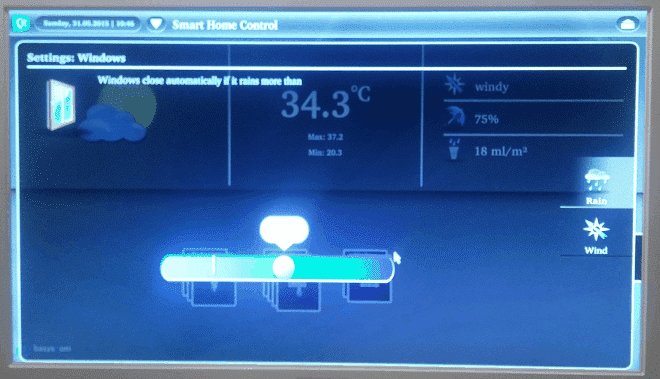
Agora vamos rodar o exemplo do QtSmartHome:
cd /usr/share/qtsmarthome-1.0/
./smarthome -platform eglfs
A figura 2 mostra um screenshot do QtSmartHome:
Agora vamos rodar o exemplo Qt5EveryWhereDemo:
cd /usr/share/qt5everywheredemo-1.0
./QtDemo -platform eglfs
A figura 3 mostra um screenshot do Qt5EveryWhereDemo:
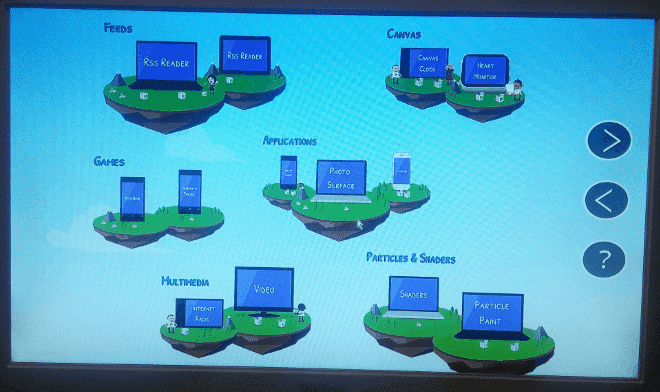
Aproveite para explorar os diversos exemplos presentes no caminho /usr/share/qt5 e lembre-se de sempre passar a opção “-platform eglfs” quando carregar os programas.
Dicas e Truques
Para remover o cursor piscante na tela rode o comando:
echo 0 > /sys/class/graphics/fbcon/cursor_blink
Para desabilitar o desligamento da saída de vídeo rode o comando:
echo -e '\033[9;0]' > /dev/tty1
O que vem por aí
Na próxima parte veremos como gerar uma toolchain com o Qt5 para ser integrada a IDE QtCreator para desenvolvimento e compilação das aplicações Qt.










Hi Diego, I got this problem:
NOTE: Applying patch ‘0060-gcc-var-tracking.c-backport-from-gcc-trunk-r212178.patch’ (../poky-fido-1.8/meta-embarcados/recipes-devtools/gcc/gcc-source-4.9/0060-gcc-var-tracking.c-backport-from-gcc-trunk-r212178.patch)
ERROR: Command Error: exit status: 1 Output:
Applying patch 0060-gcc-var-tracking.c-backport-from-gcc-trunk-r212178.patch
patching file gcc/var-tracking.c
Hunk #1 FAILED at 5997.
Can you help me?
Thanks
Michele
I get some errors during bitbake for qt5-image-demo: ERROR: Function failed: do_install (log file is located at /home/yocto/yocto/build-fido/tmp/work/x86_64-linux/mklibs-native/0.1.40-r0/temp/log.do_install.19750) ERROR: Logfile of failure stored in: /home/yocto/yocto/build-fido/tmp/work/x86_64-linux/mklibs-native/0.1.40-r0/temp/log.do_install.19750 Log data follows: | DEBUG: Executing shell function do_install | NOTE: make -j 4 DESTDIR=/home/yocto/yocto/build-fido/tmp/work/x86_64-linux/mklibs-native/0.1.40-r0/image install | make: *** No rule to make target `install’. Stop. | ERROR: oe_runmake failed The “image” folder is empty, and seems to get cleared before I run bitbake, same for e2fsprogs-native, so unpacking the downloaded tar.gz into the folder also does not help. And the qwebkit fails to fetch. qtwebkit-5.4.2+gitAUTOINC+ea590d74ea-r0 do_fetch (pid 19880) Is there something that be done… Leia mais »
Qt demos are running nicely. Thanx. Please suggest, how to make use of GPIO of RPi2 from Qt? WiringPi is an option. But, how to include that in this build?
Saha,
On your local.conf put:
IMAGE_INSTALL += “wiringpi”
Where is the wiringPi image? Its source code is available at their site. If I have to use that source code, what steps do I have to follow?
There is already a recipe for wiringpi on Yocto:
https://git.yoctoproject.org/cgit/cgit.cgi/meta-raspberrypi/tree/recipes-devtools/wiringPi/wiringpi_git.bb?h=fido
You just need to put at IMAGE_INSTALL, as I told you before.
Thanks. I’ll try. Is there any list of recipe for RPi available on Yocto?
You can use the link below:
https://layers.openembedded.org/layerindex/branch/fido/recipes/
Thanks. With IMAGE_INSTALL += “wiringpi” in local.conf, I have created the image. bitbake only added wiringpi to the existing image. But now it does not boot. I see only four Raspberry images on top-left. What could be wrong?
Do you have access to the system terminal console?
If yes, post the boot messages.
Are you using Raspberry Pi 2?
If so, I think you’d have to use the most recent version of wiringpi.
To do so, edit it’s recipe (meta-raspberrypi/recipes-devtools/wiringPi/wiringpi_git.bb) with:
SRCREV = “d79506694d7ba1c3da865d095238289d6175057d”
But maybe it’s not going to build cleanly, since Yocto recipe has a patch on the wiringpi Makefile and probably it’s going to fail on patch task.
As you predicted it failed while patching. Any other solution? ERROR: Command Error: exit status: 1 Output: Applying patch Makefiles-install.patch patching file examples/Makefile Hunk #1 FAILED at 26. 1 out of 1 hunk FAILED — rejects in file examples/Makefile patching file gpio/Makefile Hunk #1 FAILED at 23. Hunk #2 FAILED at 61. 2 out of 2 hunks FAILED — rejects in file gpio/Makefile patching file wiringPi/Makefile Hunk #1 FAILED at 25. Hunk #2 FAILED at 67. Hunk #3 FAILED at 89. 3 out of 3 hunks FAILED — rejects in file wiringPi/Makefile Patch Makefiles-install.patch does not apply (enforce with -f)… Leia mais »
You have to understand the patch and update it to the newer version of that package.
After the rework, update the Makefiles-install.patch file.
Yes, I am using RPi2. Is system terminal console means serial port debug output? If so, I’ll connect a serial cable and try to get the messages.
Following is the boot messages [ 0.000000] Booting Linux on physical CPU 0xf00 [ 0.000000] Initializing cgroup subsys cpu [ 0.000000] Initializing cgroup subsys cpuacct [ 0.000000] Linux version 3.18.5 (mylinux@mylinux-G41M-Combo) (gcc version 4.9.2 (GCC) ) #1 SMP PREEMPT Sat Sep 26 01:57:59 IST 2015 [ 0.000000] CPU: ARMv7 Processor [410fc075] revision 5 (ARMv7), cr=10c5387d [ 0.000000] CPU: PIPT / VIPT nonaliasing data cache, VIPT aliasing instruction cache [ 0.000000] Machine model: Raspberry Pi 2 Model B [ 0.000000] cma: Reserved 8 MiB at 0x36800000 [ 0.000000] Memory policy: Data cache writealloc [ 0.000000] On node 0 totalpages: 225280 [… Leia mais »
I don’t think that the problem is related to wiringpi package.
I suggest you to burn sdcard again and if it’s reproduced, generate another image without wirinpi and test again.
I tried many times, without wiringPi no problem, with wiringPi it does not boot. Even though there is no error while building. Is the boot image getting corrupted? Do I need to rebuild the whole image from the beginning?
Maybe it’s because the version of wiringpi in the Yocto recipe is not compatible with Rpi2.
See my comment below and try to build the most recent version of wiringpi.
Diego, esses aplicativos de teste do QT rodam a partir de uma interface gráfica que já vem no Yocto(Xfce,Gnome), a partir de Directfb ou algo do próprio QT?
Vinicius,
Tudo vai depender dos plugins de plataforma do QT que vc tiver instalado no target.
Nesse tutorial estamos compilando com suporte a eglfs.
Se quiser usar em conjunto com o Xfce/Gnome, você terá que compilar o qtbase com suporte ao plugin xcb, e para o Directfb terá que adicionar o plugin do diretcfb.
No link abaixo você pode ter uma ideia tos tipois de configurações que podem ser aplicadas na hora de compilar o Qt:
https://github.com/meta-qt5/meta-qt5/blob/fido/recipes-qt/qt5/qtbase_git.bb#L44
I’m trying to run this tutorial, but I keep getting the following error:
ERROR: No recipes available for:
/home/MYHOME/yocto/poky/meta-embarcados/recipes-browser/chromium/chromium_%.bbappend
Summary: There was 1 ERROR message shown, returning a non-zero exit code.
Running nano /home/MYHOME/yocto/poky/meta-embarcados/recipes-browser/chromium/chromium_%.bbappend gives me this:
LDFLAGS += “-Wl,–no-keep-memory”
PARALLEL_MAKE = “-j 4”
(same error happens on the RPi 1 tutorial)
Michael,
To bypass this put the following line on your conf/local.conf:
BBMASK = “meta-embarcados/recipes-browser/chromium/chromium_%.bbappend”
That did it. Thank you. Now I get the following, after a while:
WARNING: Failed to fetch URL https://kernel.org/pub/linux/kernel/v3.0/linux-3.19.tar.xz, attempting MIRRORS if available
ERROR: Fetcher failure: Fetch command failed with exit code 4, output:
wget: unable to resolve host address ‘kernel.org’
ERROR: Function failed: Fetcher failure for URL: ‘https://kernel.org/pub/linux/kernel/v3.0/linux-3.19.tar.xz’. Unable to fetch URL from any source.
ERROR: Logfile of failure stored in: /home/MYHOME/yocto/build-fido/tmp/work/cortexa7hf-vfp-vfpv4-neon-poky-linux-gnueabi/linux-libc-headers/3.19-r0/temp/log.do_fetch.18253
ERROR: Task 861 (/home/MYHOME/yocto/build-fido/../poky-fido/meta/recipes-kernel/linux-libc-headers/linux-libc-headers_3.19.bb, do_fetch) failed with exit code ‘1’
Hey there! Any way to test sound output on Raspberry Pi2? Does any of the Qt5 example applications have sound? Cheers!!
Take a look at: /usr/share/qt5/examples/multimedia/
Hey there, On Ubuntu 14.04 getting this message, any suggestion? ... linking bin/qmake + ret=0 + trap 0 + exit 0 NOTE: Tasks Summary: Attempted 2472 tasks of which 3 didn't need to be rerun and 1 failed. Waiting for 0 running tasks to finish: Summary: 1 task failed: /home/joel/yocto/build-fido/../poky-fido/meta-raspberrypi/recipes-multimedia/omxplayer/omxplayer_git.bb, do_compile Summary: There were 4 WARNING messages shown. Summary: There was 1 ERROR message shown, returning a non-zero exit code. ok the error happened around here (getting how to find logs, that’s progress already right?) joel@linux-Lenovo-G50-70:~/yocto$ find . -name log.do_compile | grep omxplayer ./build-fido/tmp/work/cortexa7hf-vfp-vfpv4-neon-poky-linux-gnueabi/omxplayer/git-r3/temp/log.do_compile and here the tail of the… Leia mais »
… and the error mysteriously disappeared after a second run (??) – Let’s mark it as RESOLVED!
Beleza de artigo!!! – Vou destrinjar mais tarde, porem fica o Parabens!!!
E parabens tambem pelo gosto musical!!!
Obrigado pelo apoio Ciro.
Se tiver problemas avise por aqui.
Here you go Chromium Web Engine running on RPi2!!! Thanks Diego, Thanks Embarcados! import QtQuick 2.1 import QtQuick.Controls 1.1 import QtWebEngine 1.0 ApplicationWindow { width: 1280 height: 720 color: "lightgray" visible: true WebEngineView { id: webview url: "https://embarcados.com.br/raspberry-pi-2-qt5-qt-creator-yocto-fido/" anchors.fill: parent } } Run root@raspberrypi2:~# /usr/bin/qt5/qmlscene --platform eglfs chromium.qml Now if I changed the URL to https://duckduckgo.com or https://google.com … it never loads but I will call it a day 😉 UPDATE I have tested several websites, I think I was lucky to have started with your website. It could be something about the fonts … but sometimes I also get… Leia mais »
Send some Screenshots.
😉
Hello there
Why not
GPU_MEM = "1024"in yourlocal.conf?Why do you want ot allocate all system memory to GPU?
It does not make any sense.
On my tests 128MB for GPU is enough to get a good performance on the accelerated graphics.
No you are right I don’t know what I was thinking.
I guess I was wondering if Chromium Web Engine will be more demanding on memory though. I think I saw a post where they set mem to 512, but I am not sure on which ground they’d do that. I am not an embedded system specialist.